![varsome-new.png]](https://docs.varsome.com/hs-fs/hubfs/varsome-new.png?height=40&name=varsome-new.png)
Overview
These capabilities help Group Supervisors structure their team workflows, safeguard sensitive data, and ensure that each user sees and performs only what they are authorized to.
This article explains how roles work, how permissions are configured, and how to manage users, samples, and analyses based on assigned role capabilities.
Groups that choose not to enable the role-based access will retain all existing user permissions. Users will continue to operate with the same access and capabilities they currently have, without any changes to their permission levels.
The User Management Page
Group Supervisors and users with the “Manage Users” permission will have access to the User Management page. This is available from the profile menu located in the upper-right corner of the platform. Selecting this option opens a dedicated workspace where members of the group can be viewed and managed.

Upon entering the User Management page, a dashboard-style table is displayed. This table centralizes essential information for all users within the group, including:
- Name
- Position (if applicable)
- Assigned Role
- Last Login timestamp
- Available actions (Edit)
A search bar and role filter are positioned above the table to facilitate quick navigation, particularly for groups with a large number of members. These tools make it possible to locate users based on name, email, or role type.

Modifying a user’s role is done by selecting a new role from the drop-down and confirming the change. The update is applied immediately across the platform.
Roles and Permissions
This section covers both Default Roles and Custom Roles. Default roles are provided by the platform and can be modified by enabling or disabling specific permissions. Custom roles can be created with any combination of permissions and assigned a custom name. The Group Supervisor retains all permissions across the platform, including full control over creating, editing, and deleting roles. This section describes the predefined roles included in the platform, the default permissions associated with each role, and the way custom roles can be configured when the default options do not fully match an organization's needs.
Default Roles
The platform provides five predefined roles that reflect common responsibilities in laboratory and clinical interpretation workflows: Group Supervisor, Group Admin, Analyst, Clinical Curator, and Report Writer.
Each role is associated with a predefined set of permissions that determines the actions its users are allowed to perform.
The default permissions for each role are described below.
- Group Admin
- Manage users (assign roles)
- Assign/reassign samples
- Upload files (FASTQ, BAM, VCF, etc.) and define samples
- Launch analyses (with and without workflows)
- Launch sub-analyses
- View all samples
- Upload files (FASTQ, BAM, VCF, etc.) and define samples
- Launch analyses (with workflows)
- Launch sub-analyses
- View only assigned samples
- View all samples
- View assigned samples
- View only assigned samples
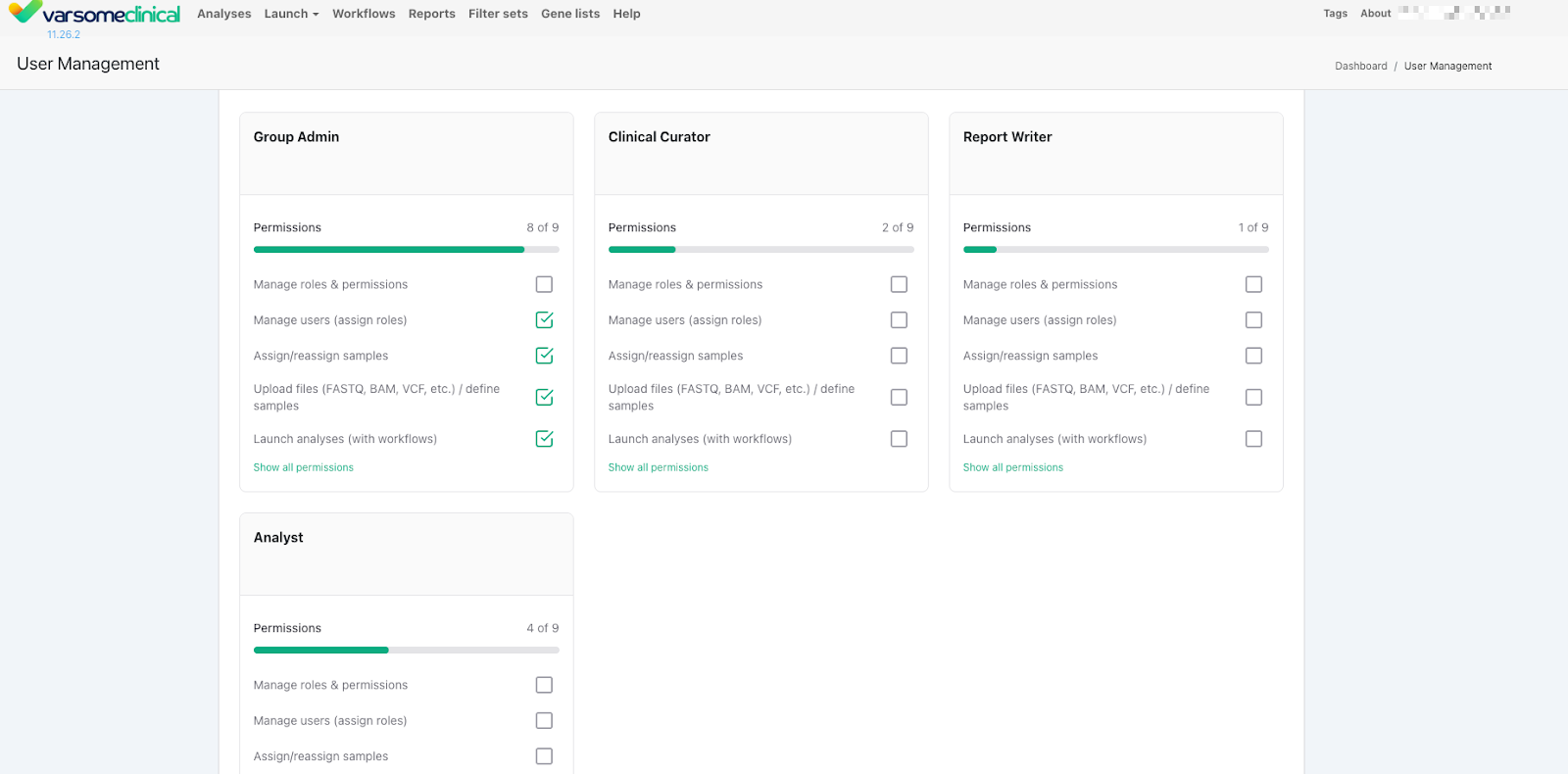
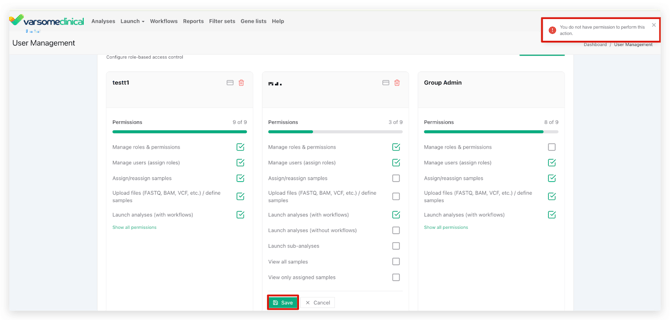
The Group Supervisor retains full permissions across the platform. In addition to performing all operational actions, this role is responsible for configuring how roles behave. The Group Supervisor may create new roles or adjust the permissions of existing ones. Role customization is performed by enabling or disabling individual permissions through a set of check-boxes and saving the resulting configuration.
While the Group Admin may assign roles to users, this role does not automatically include permission to create or modify roles themselves. The Group Supervisor may grant this permission to the Group Admin if the organization requires a more distributed model of role management.
Custom Roles
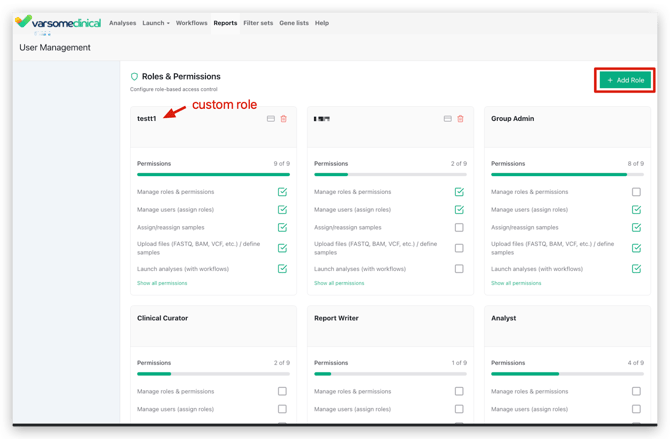
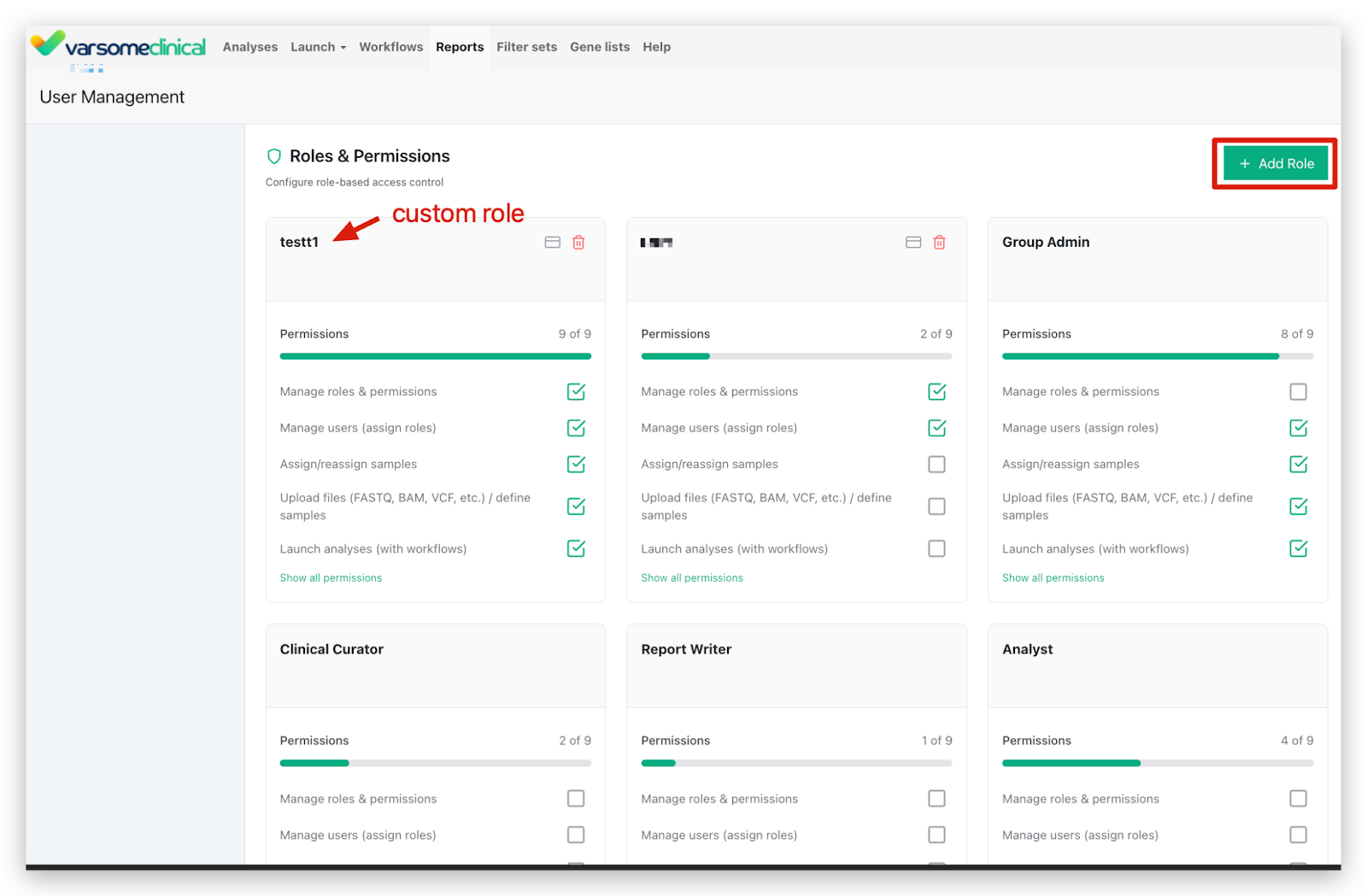
Custom roles allow organizations to define tailored permission sets beyond the predefined defaults. A custom role can be created with:
- A custom role name
- Any combination of available permissions (checked or unchecked)
- The ability to be edited or deleted at any time
Custom roles can be created by the Group Supervisor or any user with the Manage Roles & Permissions permission. Once created, custom roles appear in the role-selection drop-down for all users who have the ability to assign roles.
Groups that choose not to enable the role-based access will retain all existing user permissions. Users will continue to operate with the same access and capabilities they currently have, without any changes to their permission levels.
Sample assignment
The group supervisor, group admin and any custom role with the assign samples permission can assign samples from the analyses table by adding users from the Assign to column.
Assigning Samples from the Analyses Table
Users with the Assign Samples permission can assign samples directly from the Analyses page. The Assign To column includes an icon that opens a user-selection panel where one or multiple team members can be added.
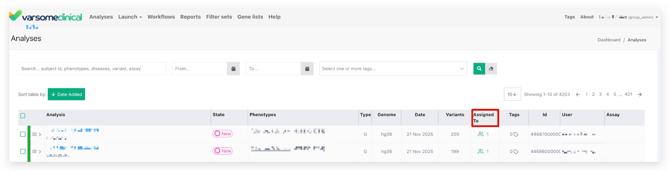

Multiple samples can be assigned simultaneously by selecting them via check-boxes. The table can also be filtered by assay, enabling efficient bulk assignment for specific workflows.

After assignment, users with View Only Assigned Samples will see these analyses appear in their own workspace, while those with View All Samples have continuous visibility of all entries.
Assignment During Sample Creation
Samples can also be assigned during sample definition.
Roles that include the ability to define samples, such as Analysts, automatically receive the newly created sample. If a user lacks sample-assignment permissions, the user-search field will not be accessible during creation.
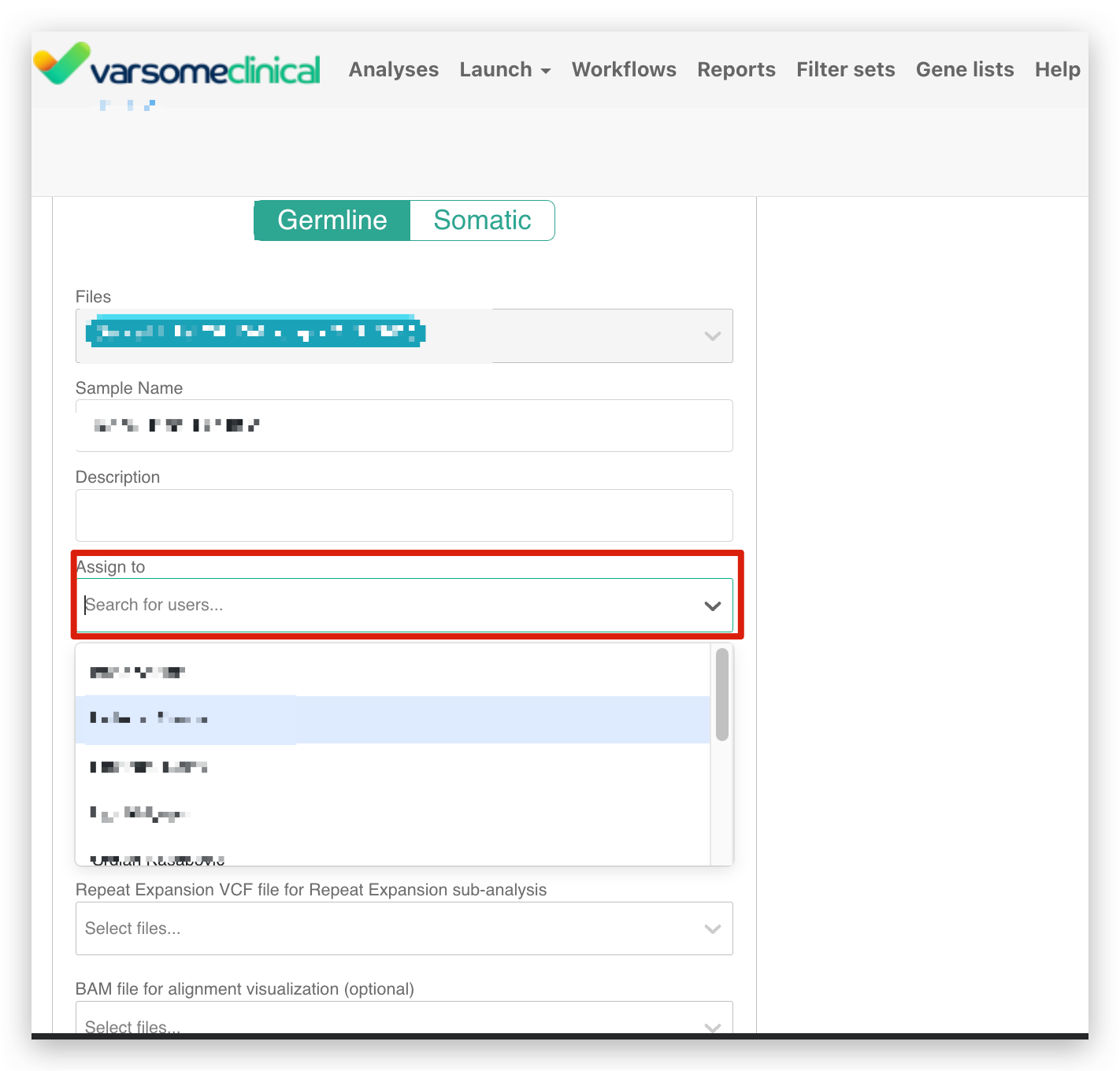
If a group chooses not to enable role-based access, the Assign To option will still be visible both in the Analyses table and the create sample page. You will be able to select a user to assign a sample to. However, this assignment does not restrict visibility. All users will continue to see all samples regardless of the assignment. The Assign To field can still be used for tracking, workload organization, or indicating responsibility, but it should not be considered a security or access-control feature.
Sample Visibility Based on Permissions
Each role determines the level of visibility a user has within the Analyses table.

Full visibility (View All Samples)
Roles such as Group Admin or Clinical Curator, as well as certain custom roles, can see all samples within the group and may perform only the actions permitted by their role.
Restricted visibility (View Only Assigned Samples)
Roles such as Analyst or Report Writer are limited to viewing only samples explicitly assigned to them.
Launching Analyses
The ability to launch analyses depends on the specific permissions associated with each role.
Analyses may be launched with a workflow or without a workflow, and these two capabilities are independent. A role may have one or both permissions.
Users only see the launch options that correspond to their assigned role.
Launching sub-analyses is governed by a dedicated permission. Sub-analysis execution does not require permissions for launching main analyses and must be granted separately. Once a sub-analysis is assigned, it appears within the user’s list alongside the associated main analysis.