![varsome-new.png]](https://docs.varsome.com/hs-fs/hubfs/varsome-new.png?height=40&name=varsome-new.png)
To upload your file or files, you can click on Launch > 1. Upload/view files on the top of your screen, and then click on  .
.
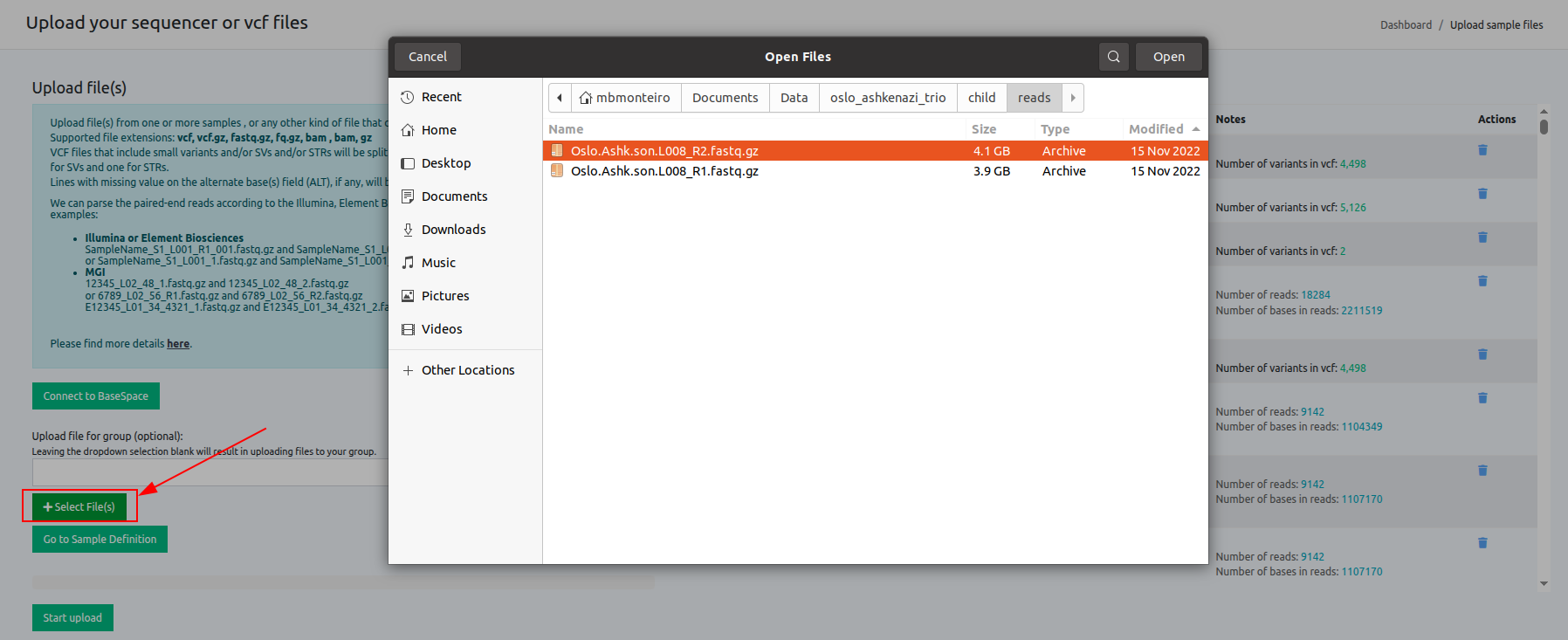
You can also connect your Illumina BaseSpace account.
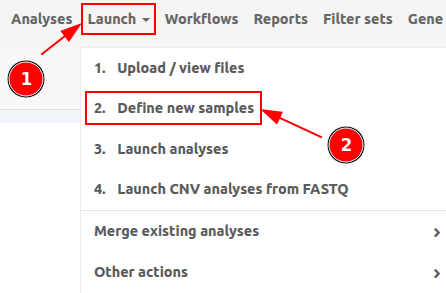
To create your samples you need to navigate through:
Launch > 2. Define new samples
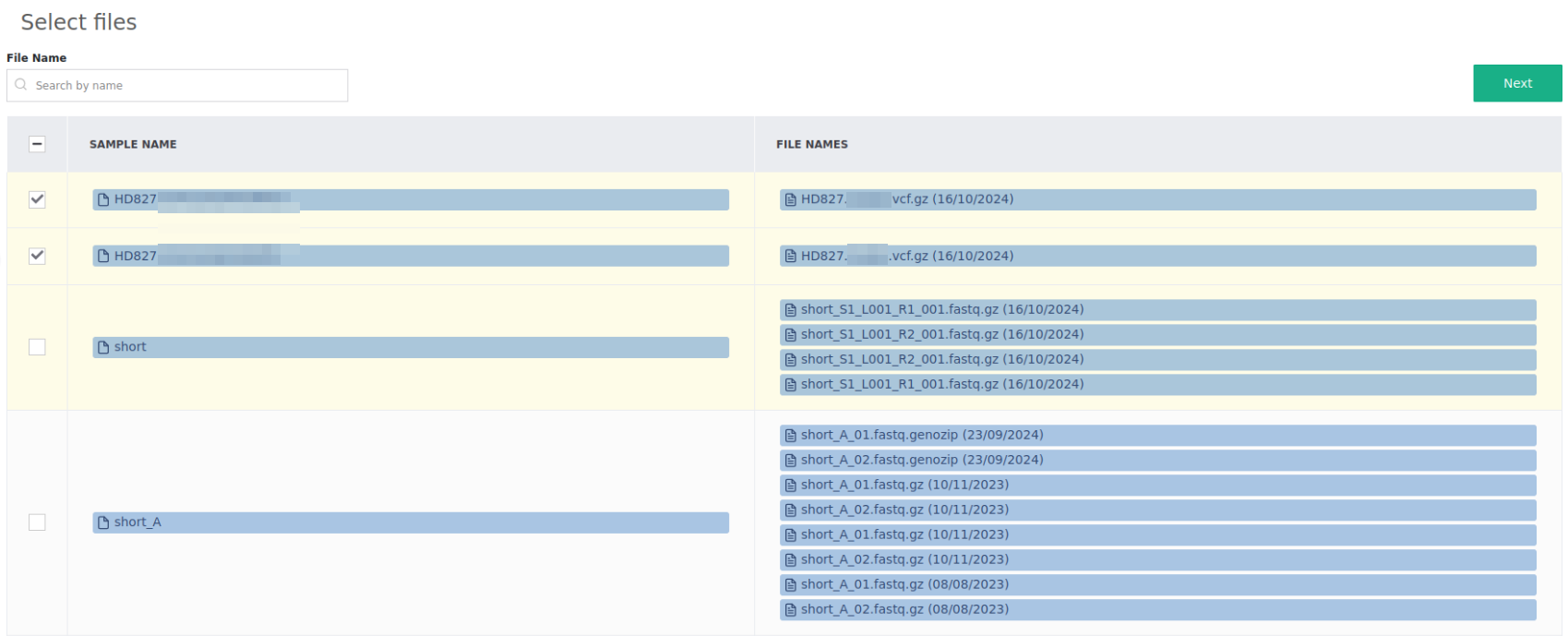
You can then define which files are associated with which sample name and you can optionally attach additional information to the sample (e.g phenotypes).
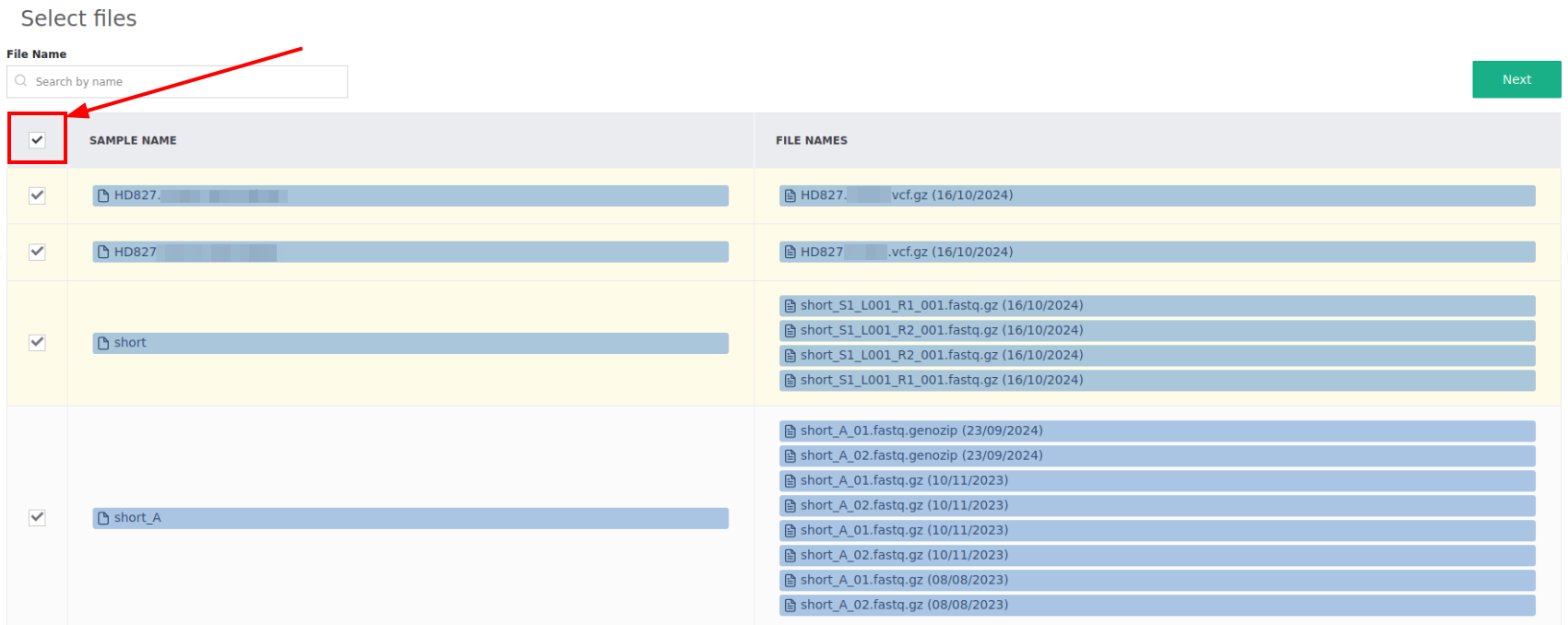
To select all files from the table, you can simply check the box on the top left:
FASTQ files are grouped according to the Illumina or MGI naming convention and are given a suggested sample name. The suggested name and associated files can be modified in the following screen. For VCF files - each VCF is associated with a suggested sample name.
Launch > 2. Define new samples > Next: for adding more information to the sample, notes, phenotype, etc.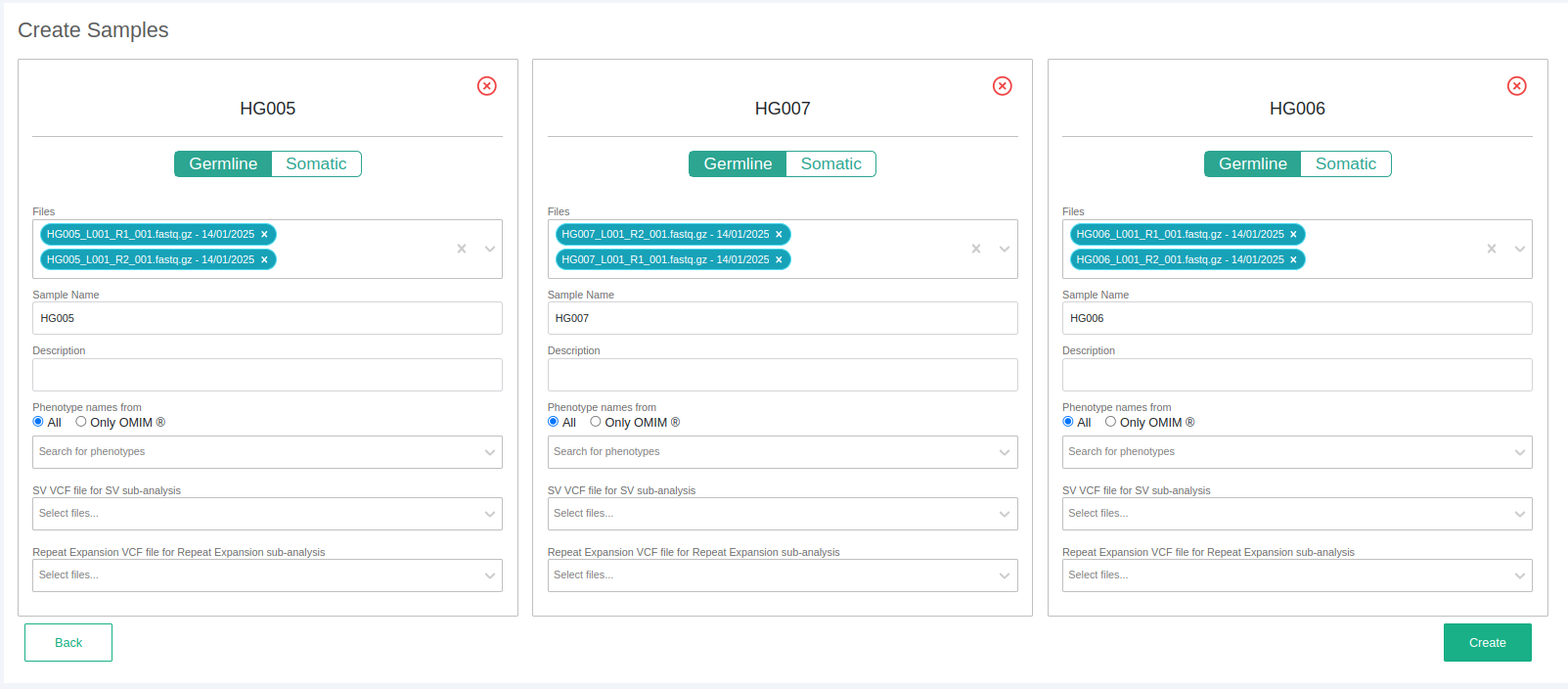
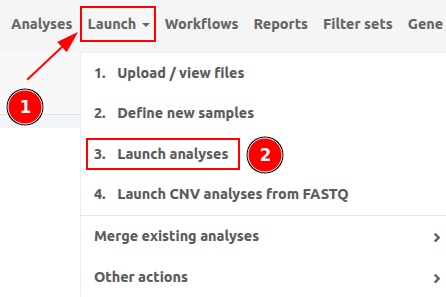
To launch an analysis, navigate to Launch > 3. Launch analyses.
You have the option to launch an analysis without the use of a workflow by clicking here:
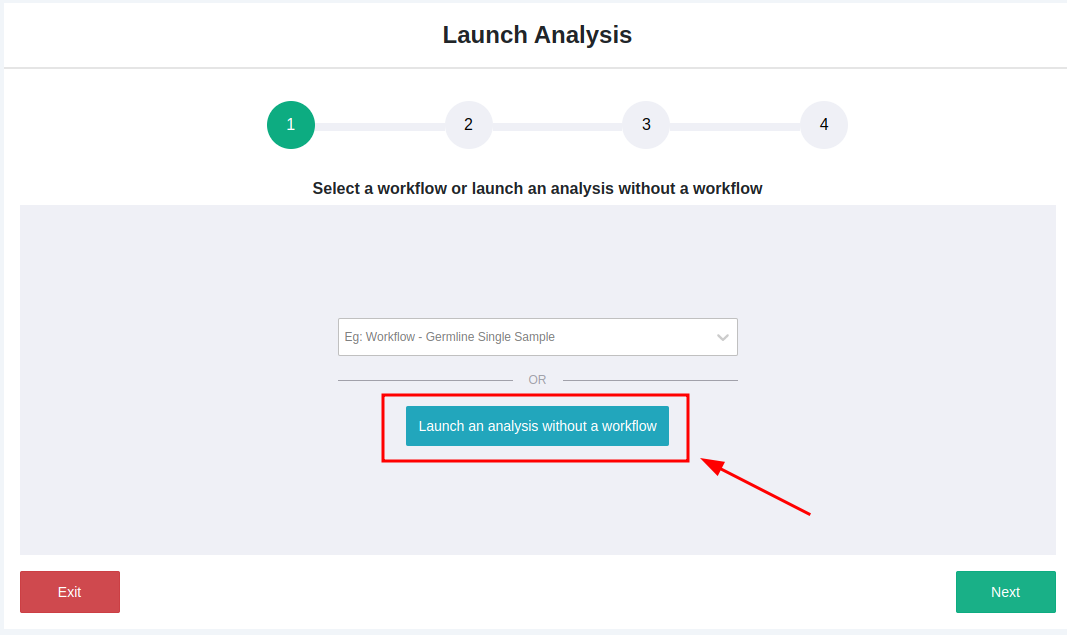
Launch > 3. Launch analyses > Launch analysis without a workflow
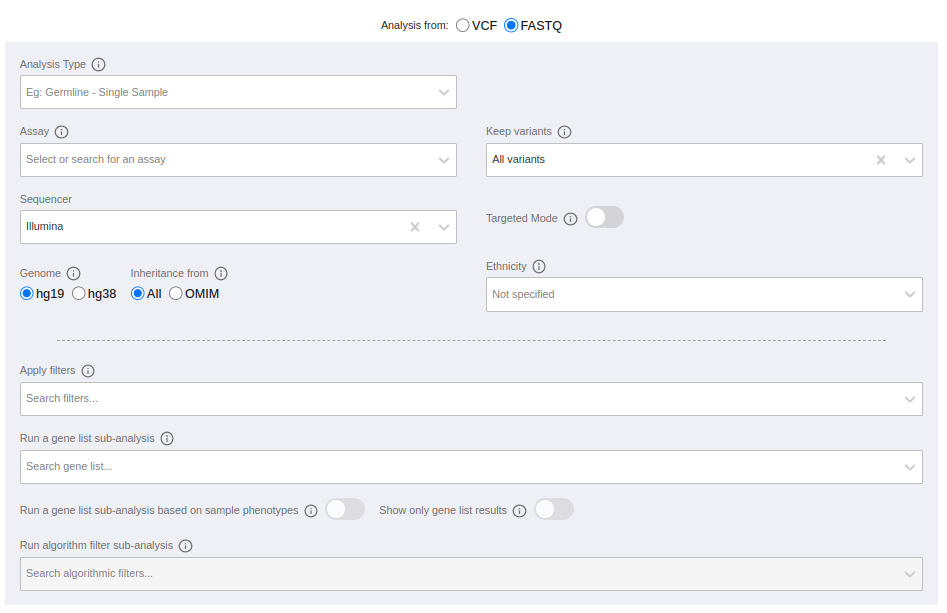
- All users in the group can use this option
- Users have to define all analysis parameters
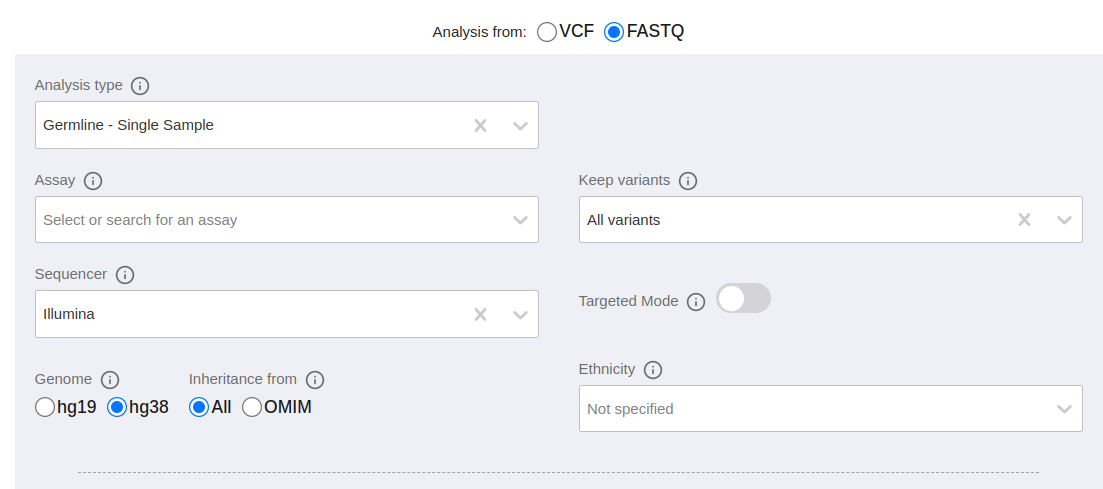
Define the main analysis parameters
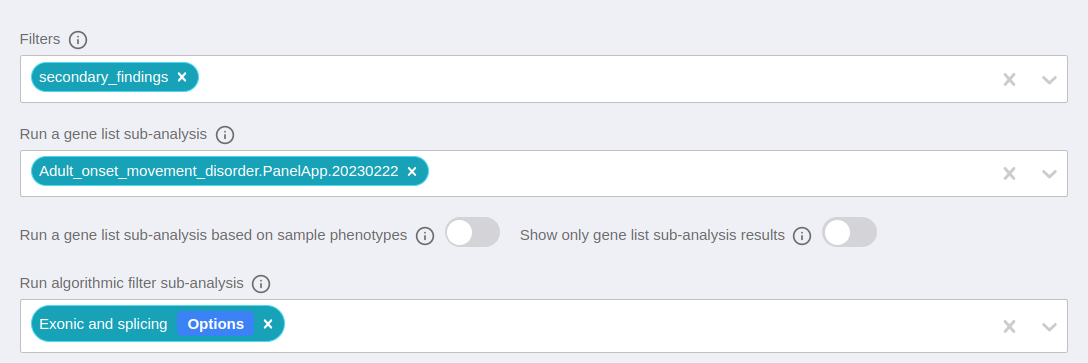
(Optional) define filters and sub analyses to reduce manual steps
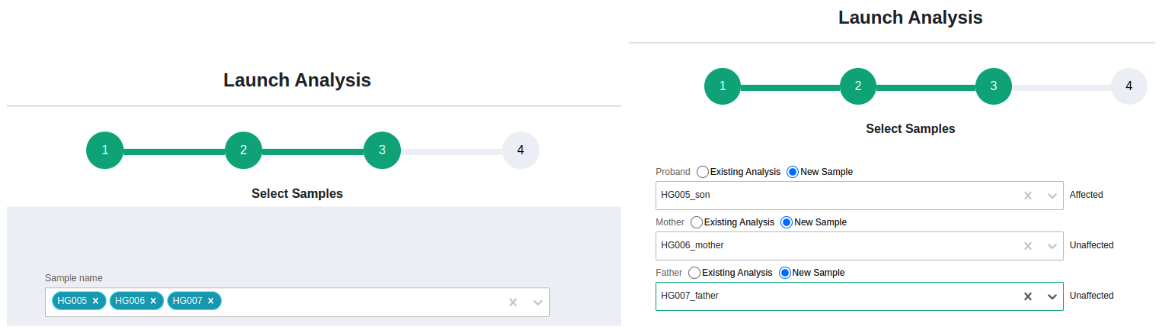
Single sample analysis Multi sample analysis