![varsome-new.png]](https://docs.varsome.com/hs-fs/hubfs/varsome-new.png?height=40&name=varsome-new.png)
To keep your column display preferences saved, it is necessary to change your web browser settings to keep the on-device data. Proceed with the following adjustments according to your preferred browser:
Google Chrome
1. Click the menu icon (three vertical dots) in the top right corner of your browser window and select "Settings".
2. In the left sidebar, click on "Privacy and security", then select "Site settings".
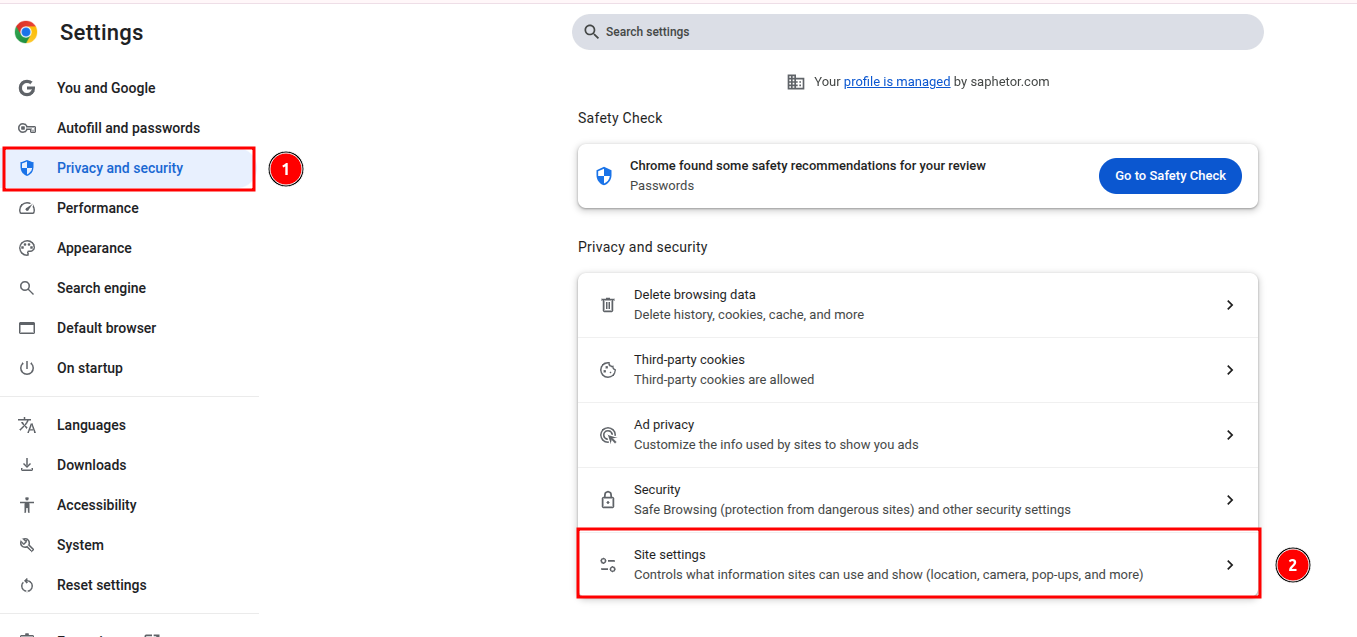
3. Scroll down to expand the "Additional content settings" menu and click on "On-device site data".
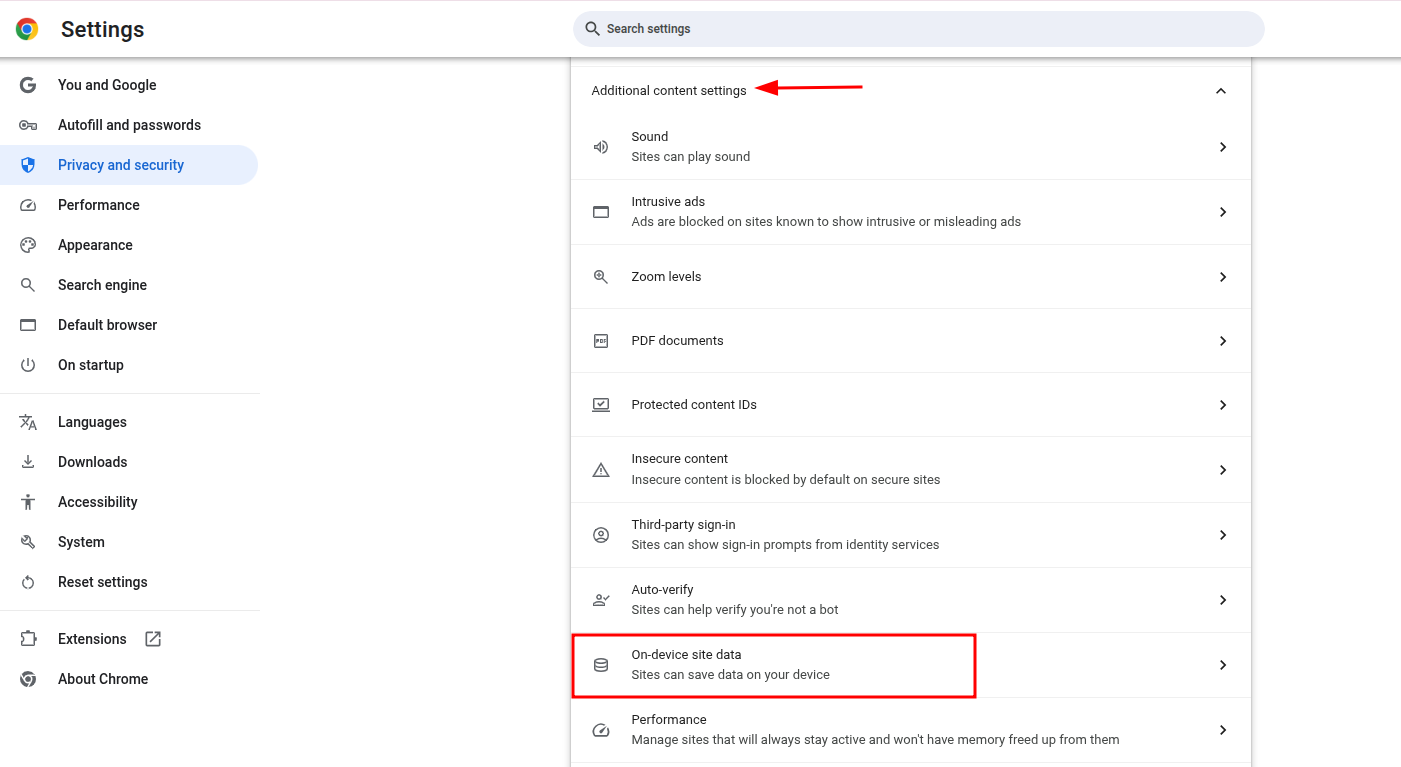
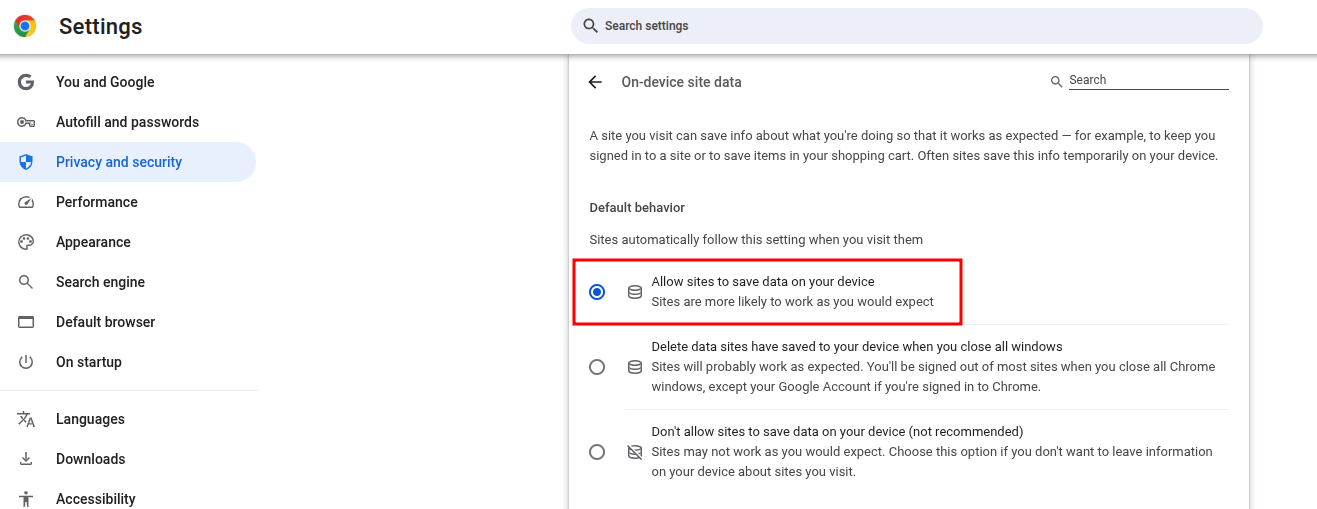
4. Select the option "Allow sites to save data on your device" to ensure your column display preferences are successfully saved.
Mozilla Firefox
1. Click the menu icon (three horizontal lines) in the top right corner of your browser window and select "Settings".
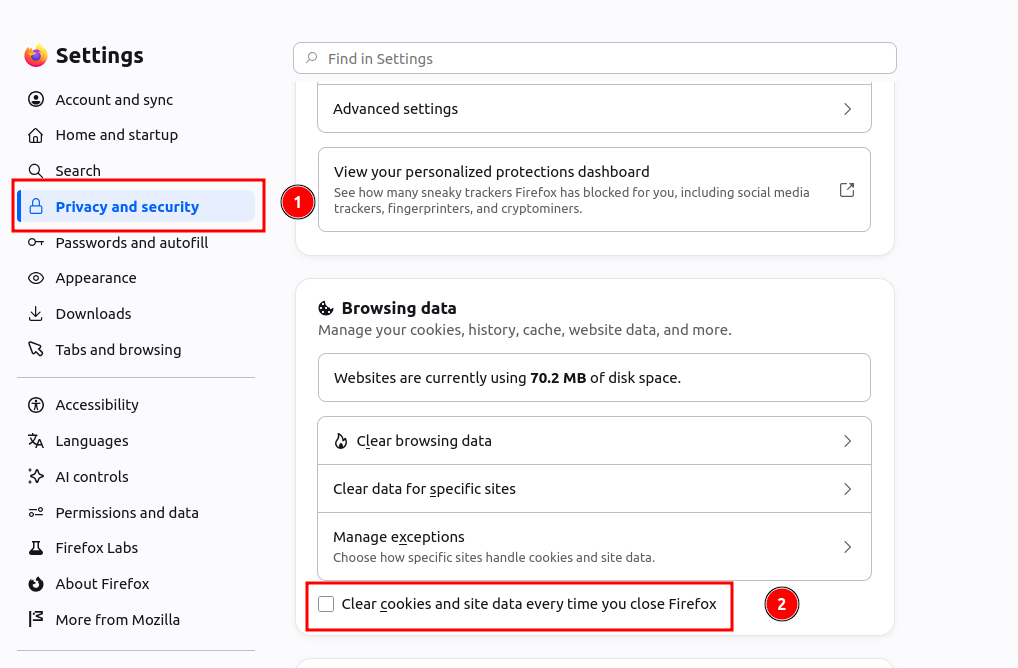
2. On the left sidebar, click on "Privacy and security". Scroll down to locate the "Browsing data" section. Here, make sure the "Clear cookies and site data when Firefox is closed" checkbox is disabled (unchecked).
Microsoft Edge
1. Click the menu icon (three horizontal dots) in the top right corner of your browser window and select "Settings".
2. In the left sidebar, click on "Privacy, search, and services" and then on "Clear browsing data".
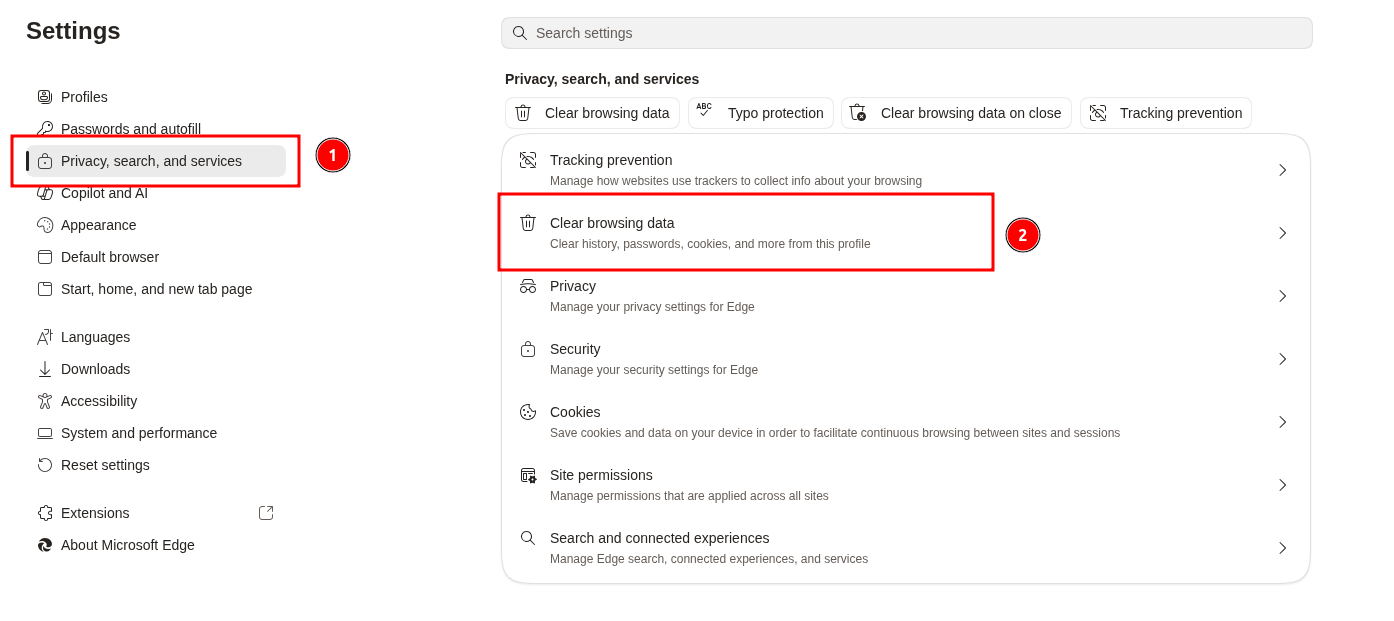
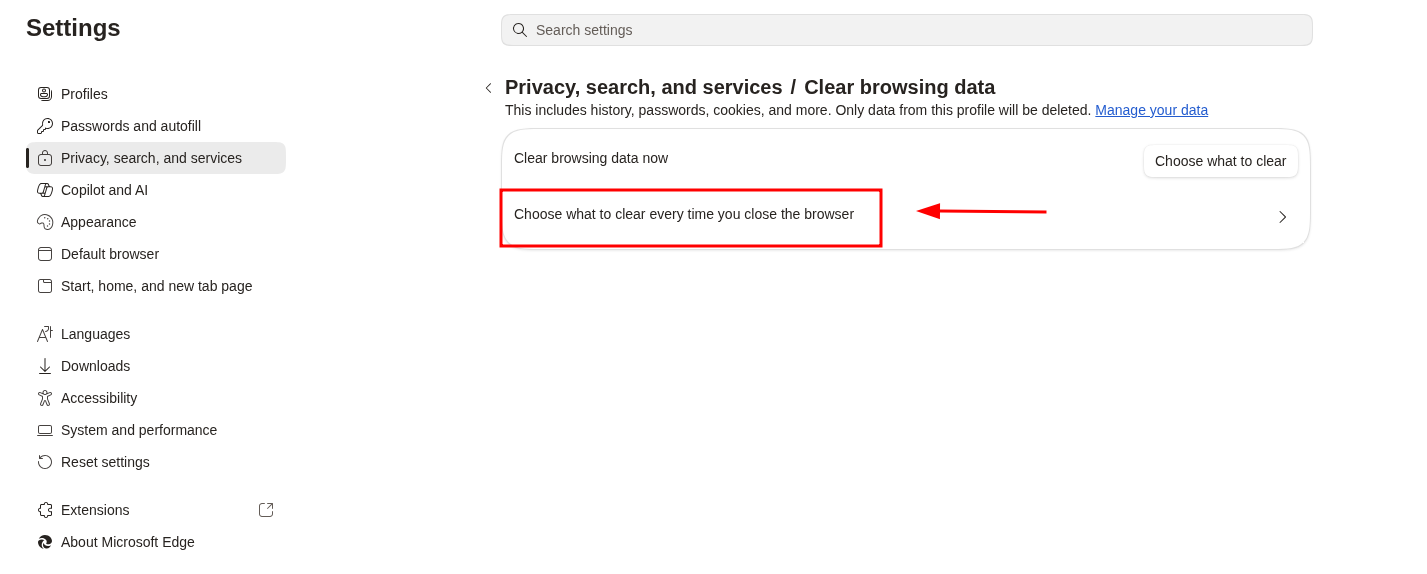
3. In Clear browsing data section, click on "Choose what to clear every time you close the browser".
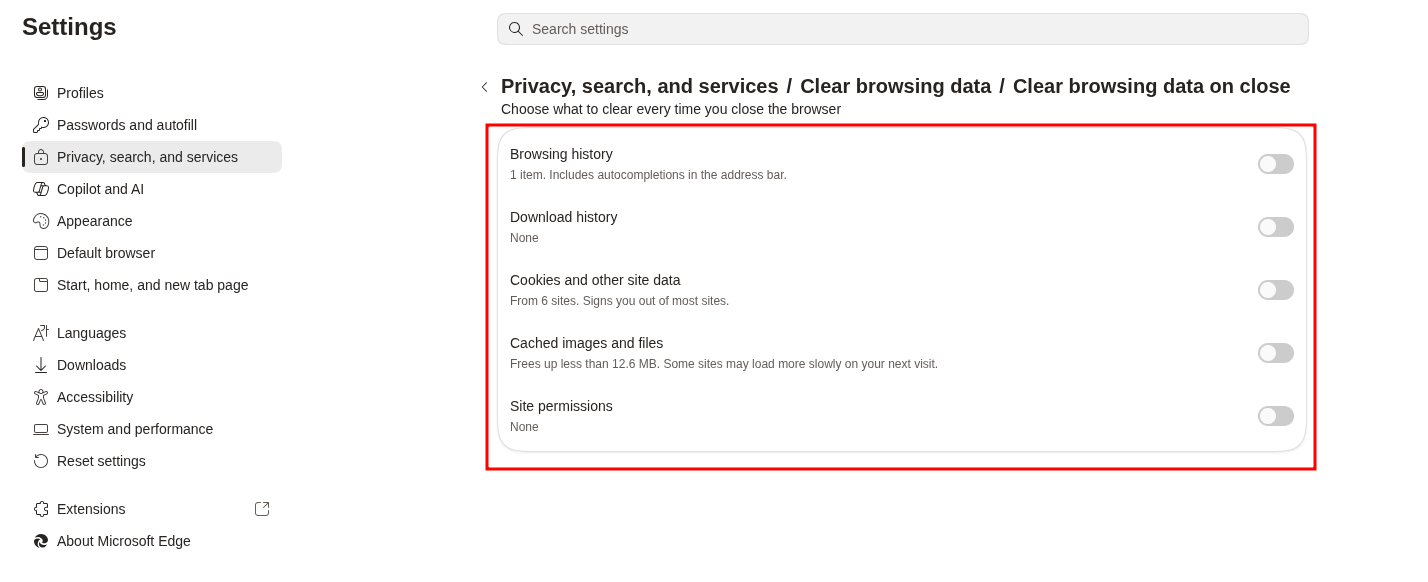
4. Verify that the options displayed on this page are disabled (toggled off).
Once this configuration is complete, your column layout preferences will be successfully maintained each time you log in to VarSome Clinical.